User guide
How to use AttendTrack
Simple steps for admins, employees, and the office kiosk tablet.
Who does what
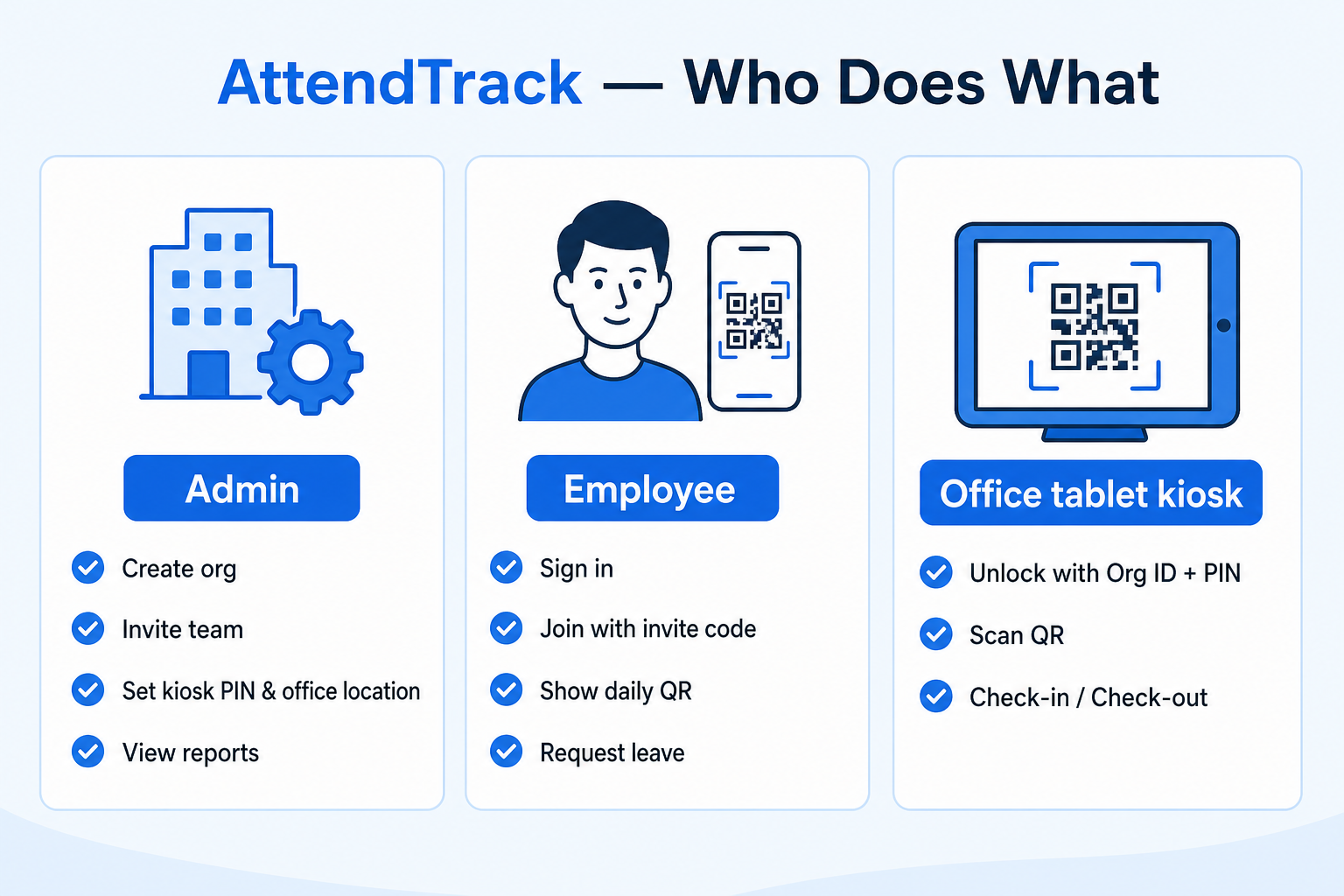
Admin
Create the organization
Invite employees
Set kiosk PIN & office location
Review attendance & leaves
Employee
Sign in and join with invite code
Open today’s QR in My Portal
Scan at the office tablet
Request leave when needed
Kiosk tablet
Unlock with Org ID + PIN
Allow location if asked
Scan employee QR codes
Shows check-in / check-out
Admin setup (first time)
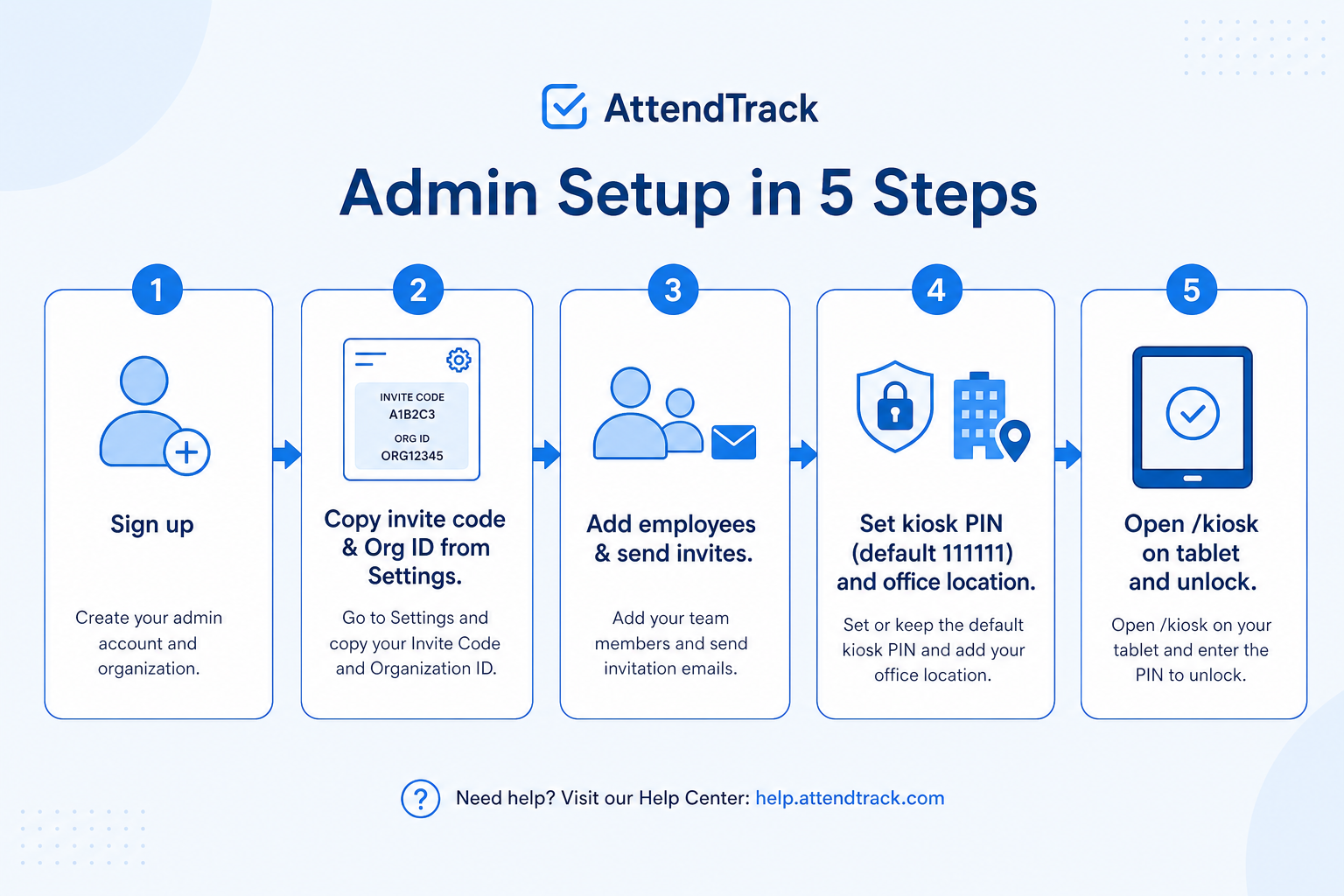
- Sign up or sign in with Google, then Create organization.
- Open Dashboard → Settings. Copy your Org ID and invite code.
- Add people under Employees and send invites (or share the invite code).
- Set a Kiosk PIN (default is
111111) and optionally enable office location / geolocation. - On an office tablet, open /kiosk/ and unlock with Org ID + PIN.
For employees
Join your company
Use the invite code from your admin
- Go to Login (Google or email).
- Choose Join an organization.
- Enter the invite code.
- Open My Portal → My QR Code for today’s attendance QR.
Your QR changes every day. Always open today’s code from My Portal before scanning.
Daily check-in at the office
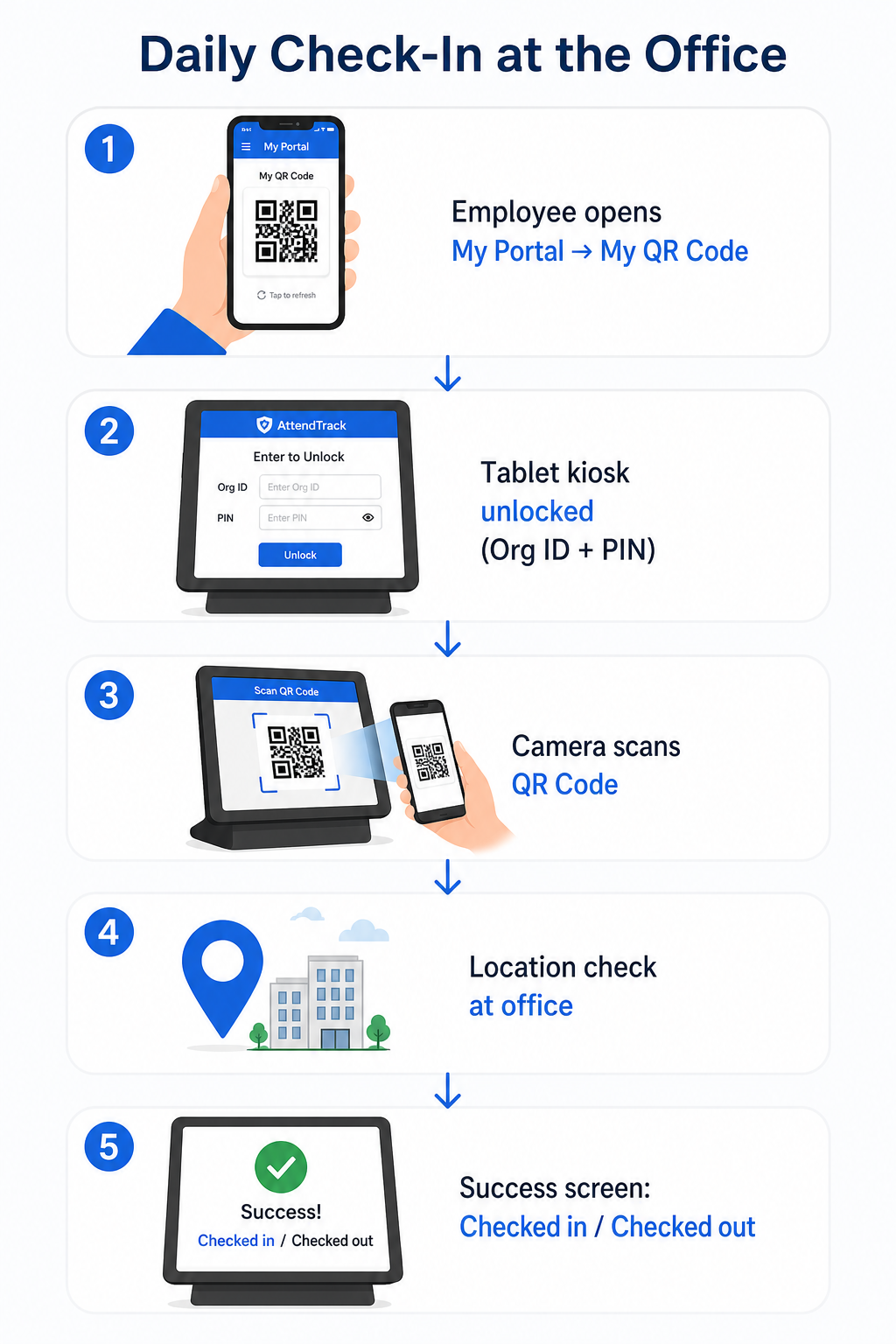
- Employee opens My Portal → My QR Code on their phone.
- Tablet is unlocked (Org ID + PIN).
- Point the QR at the camera (or use Manual Entry if needed).
- If geo is enabled, the tablet must be at the office location.
- First scan of the day = check-in. Second scan = check-out.
Quick tips
| If you see… | Do this |
|---|---|
| Invalid organization or PIN | Recopy Org ID from Settings; confirm PIN (default 111111) |
| QR expired / regenerated | Refresh My Portal → My QR Code |
| Kiosk must be at the office | Allow location; move tablet into the office radius |
| Already checked out today | That person is done for the day |